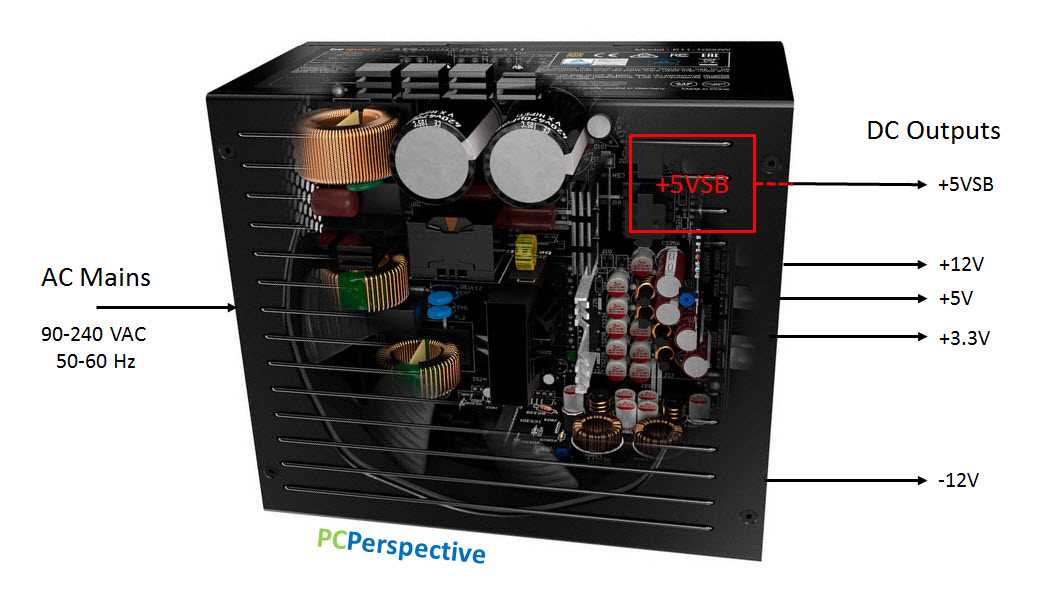
Start by identifying the correct cables that need to be connected to the motherboard. These typically include the 24-pin connector, which powers the system board, and the CPU power cable, often an 8-pin or 4-pin connector. Ensure these are firmly connected to avoid any boot-up issues.
For peripherals such as hard drives, SSDs, and optical drives, you will need to use the SATA power connectors, which provide the necessary voltage for their operation. Also, remember to check the 4-pin Molex connectors for older devices that still rely on this type of connection.
Finally, troubleshoot common problems like insufficient voltage or loose connections by using a multimeter to verify the power output from the PSU. Pay attention to the color coding of each cable to ensure you connect them correctly to prevent potential short circuits or component damage.
PC Power Supply Wiring Guide
Start by ensuring the 24-pin connector is securely connected to the motherboard. This provides the main voltage for your system. If the connector is loose, it can lead to system instability, especially during boot-up.
Next, connect the 4-pin or 8-pin CPU cable to the CPU socket on the motherboard. This cable delivers the required voltage to power the processor. Make sure the cable is firmly inserted to avoid any issues with the CPU’s performance.
For hard drives, SSDs, and optical drives, use the SATA cables. These connectors are typically smaller and provide the necessary voltage for these storage devices. Check for proper orientation when plugging these in to avoid bent pins or poor connections.
Older components may require 4-pin Molex connectors, especially for legacy hardware like fans and older drives. These cables should also be checked for wear and tear, as they are less common on modern systems.
When you connect your graphics card, make sure to attach the 6-pin or 8-pin PCIe power connector, depending on the GPU requirements. Ensure the connection is snug to prevent any power issues that might affect the card’s performance under load.
After all components are connected, it’s crucial to check the voltage on each line. Use a multimeter to verify that the output voltage is correct and within safe limits. Incorrect voltage can lead to hardware failure.
If your system is not booting up properly, check for short circuits or misconnected cables. Sometimes a small, unnoticed loose connection can prevent the entire system from starting. Double-check all connections and re-seat them if necessary.
Understanding Power Supply Connections for Motherboard
The first connection to ensure when setting up the motherboard is the 24-pin ATX connector. This provides the primary current needed to run the board. Make sure the connector is fully inserted and locked in place to avoid unstable power delivery that could result in system errors or failure to boot.
Next, you’ll need to focus on the CPU’s dedicated connection. Most modern motherboards require a 4-pin or 8-pin connector that provides extra voltage to the processor. Verify that this connector is tightly secured, as inadequate power can affect the CPU’s performance, especially under load.
For additional support, there may be additional 4-pin Molex or 6-pin connectors needed for extra components like fans, RAM, or high-end components like GPUs. Double-check these connections for correct orientation to prevent damage to the pins or the motherboard itself.
If you have a high-power graphics card, ensure the dedicated PCIe connectors are properly plugged in. These connectors vary in number–either 6-pin or 8-pin depending on the graphics card model. A loose or improperly connected PCIe cable can cause the GPU to underperform or even fail to start.
It’s also crucial to connect the motherboard’s 8-pin EPS connector. This provides an additional voltage line to ensure stable operation of the CPU. This connection is especially important for high-performance systems that require a reliable power source during intense computational tasks.
Finally, always test the system before finalizing the setup. Check all the connections once again, ensuring no cable is loose. If the system doesn’t start up or exhibits errors, retrace each connection, checking for any mistakes or overlooked steps that could cause an unstable power flow to the motherboard.