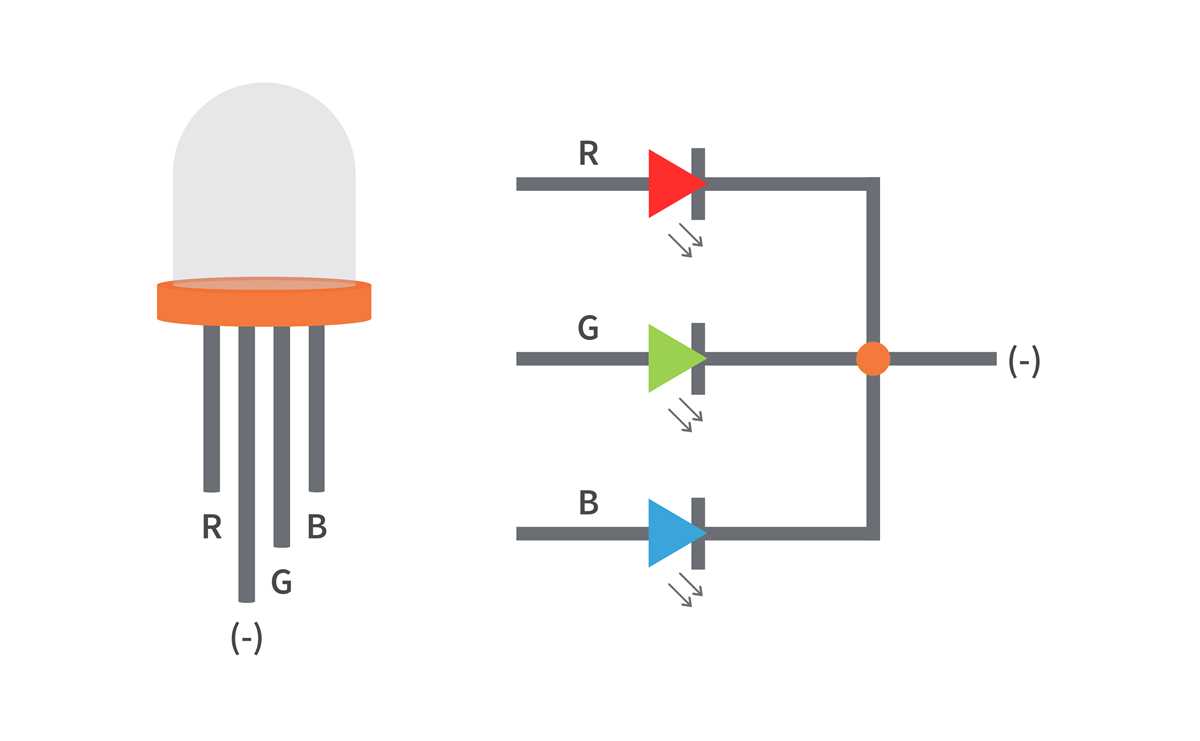
Start by connecting the positive leg of the light to the output pin of your microcontroller. You’ll need to place a current-limiting resistor in series to prevent damaging the component. Choose a resistor with a value based on the LED’s voltage rating and the operating voltage of your microcontroller.
For the negative leg of the light, connect it to the ground pin of the microcontroller. This will complete the simple circuit and allow the light to be controlled through programming. Use a breadboard for easy prototyping and adjustments during setup.
Once the hardware connections are in place, move on to the programming stage. Write code that activates the output pin, causing current to flow through the LED and make it light up. Test the setup by uploading the program and observing the LED’s response.
Arduino LED Circuit Guide
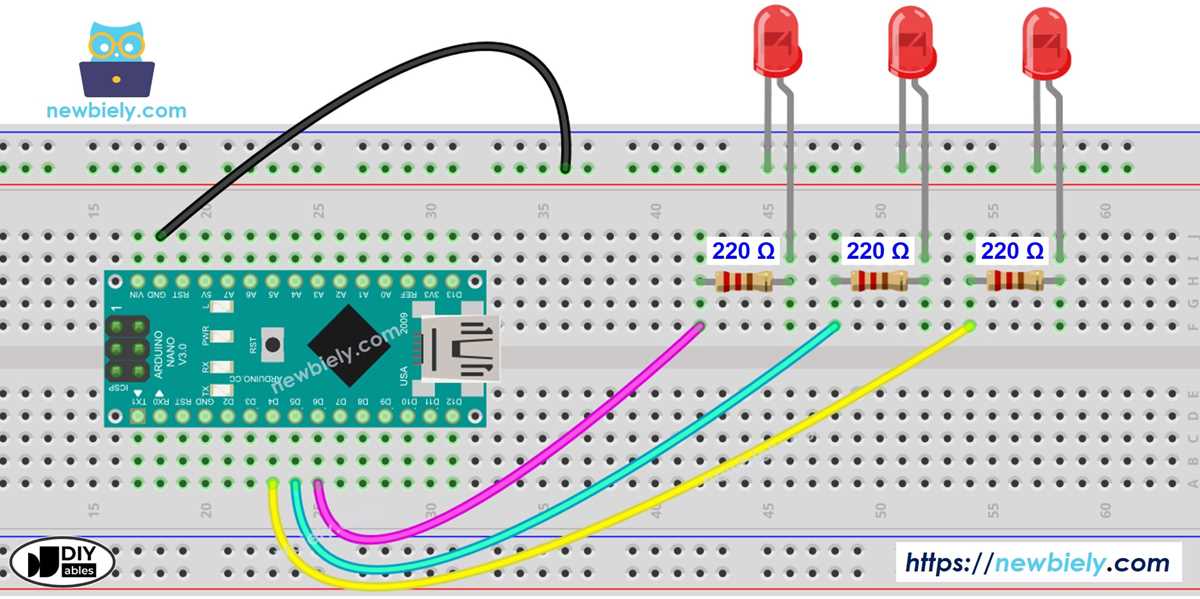
Start by selecting a suitable microcontroller and ensure that the power supply matches the required voltage for the components. Make sure the voltage is appropriate for the light source you’re using to prevent damage.
Connect the anode (positive leg) of the light to one of the digital output pins of the microcontroller. This will be the pin you use to control the light’s state. Make sure to secure the connection firmly to avoid loose contacts.
To protect the light from too much current, insert a current-limiting resistor in series with the positive leg. Use a resistor value based on the voltage specifications of the light and the microcontroller to avoid burning out the component.
The cathode (negative leg) of the light should be connected to the ground pin of the microcontroller. This provides a path for the current to complete the loop and ensures proper functioning of the light when the output pin is activated.
Next, use a breadboard to organize your connections and make adjustments during testing. The breadboard allows for easy modifications and ensures everything is properly connected before soldering components permanently.
Once the hardware is in place, write a simple program to turn the light on and off. You can start by turning the light on for a few seconds, then turning it off to test if the connection works as expected.
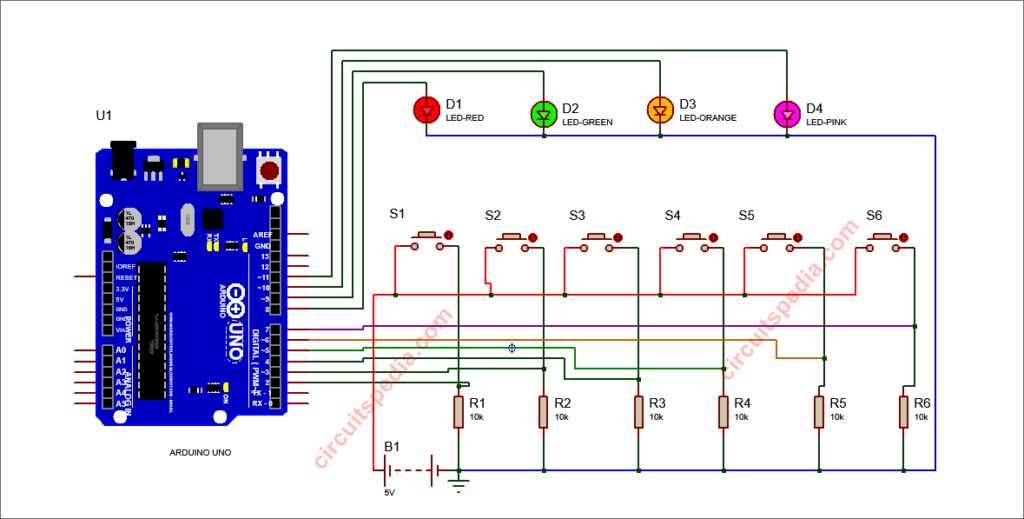
Finally, test the setup multiple times. If the light doesn’t turn on or off as expected, double-check your wiring and make sure your code properly controls the output pin. Troubleshoot by testing connections and verifying that the microcontroller is correctly outputting power to the light.
Step-by-Step Instructions for Wiring an LED to a Microcontroller
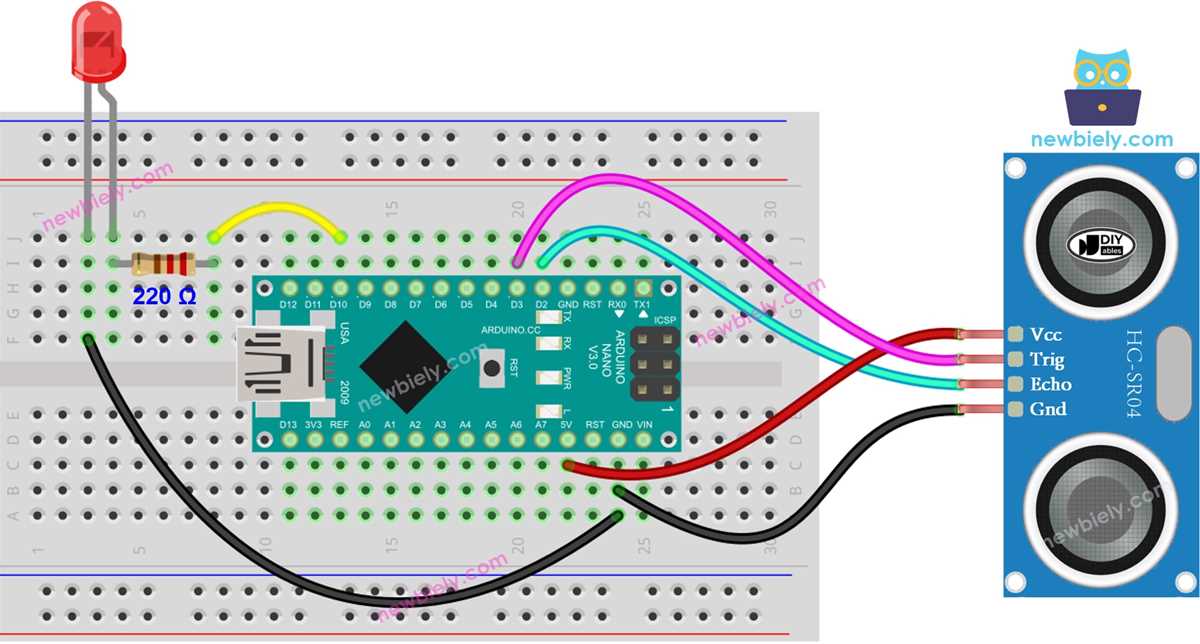
Begin by gathering the necessary components: a microcontroller, a light, a resistor, and jumper wires. Ensure the voltage rating of the light is compatible with the microcontroller you are using.
Next, insert the light’s positive leg (anode) into one of the output pins on the microcontroller. This pin will provide the necessary power to activate the light. Make sure the connection is firm and secure to avoid intermittent issues.
Place a current-limiting resistor in series with the positive leg of the light. This step is crucial to prevent excessive current from damaging the component. Use a resistor value based on the specifications of both the microcontroller and the light.
Connect the negative leg (cathode) of the light to the ground pin of the microcontroller. This completes the path for the current and ensures proper function of the setup. Ensure that the ground connection is secure to avoid incomplete circuits.
Now, use a breadboard to organize your components. Insert the microcontroller, light, and resistor into the breadboard to create a neat and easy-to-manage setup for testing and modifications.
Once the hardware setup is complete, write a basic program that turns the output pin on and off at set intervals. The program will control the flow of electricity to the light, turning it on and off based on the programmed logic.
Upload the code to the microcontroller and observe the results. If the light doesn’t respond as expected, double-check your connections and verify that your program correctly triggers the output pin. Make necessary adjustments and test again.