
Start by utilizing the built-in drawing features available in Microsoft Office to create schematics. The application offers several shapes and connectors ideal for representing electrical components like switches, resistors, and wires. Choose the appropriate shapes from the “Shapes” menu under the “Insert” tab to quickly start constructing your layout.
Next, use connectors to link the different components. These can be easily customized to represent connections between various parts of the design. Adjust the thickness and color to match the required specifications or to highlight certain connections within the schematic.
Finally, save your project in an editable format for future adjustments, or export it as an image file to share or include in reports. The program also allows you to group elements together to keep your layout organized, making it simpler to update or modify parts of the design as needed.
Creating Schematics in Microsoft Office
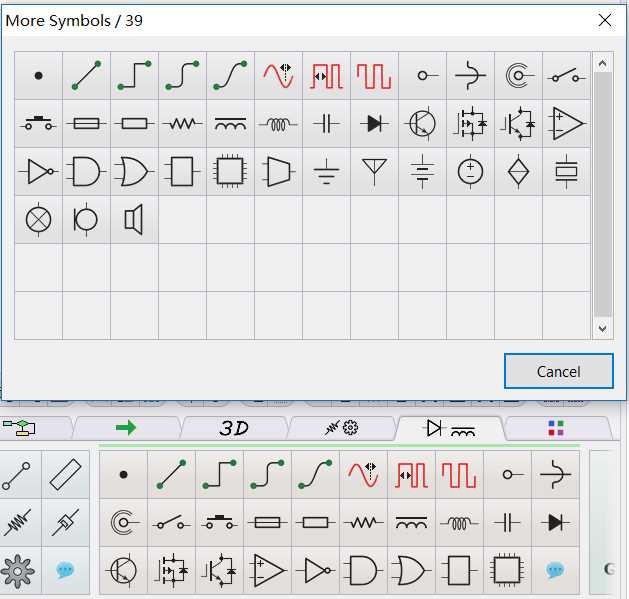
To begin, open your document and select the “Insert” tab. From here, choose the “Shapes” option, where you’ll find a variety of symbols such as lines, rectangles, and circles that can represent different components in your schematic.
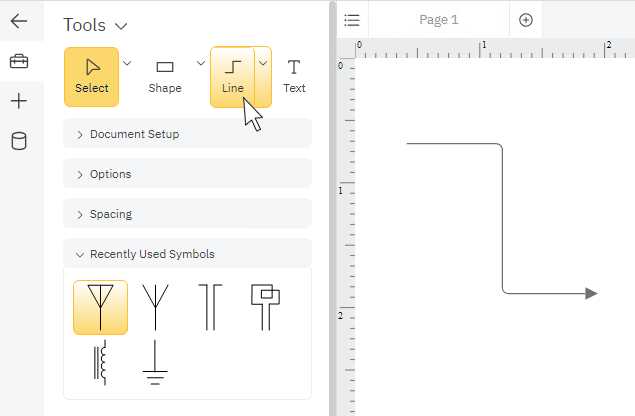
Use the lines and arrows to create connections between components. For example, straight lines can represent wires, and connectors can be used to link shapes. Adjust the direction and length of these lines as needed by dragging their endpoints.
If you need more advanced shapes, you can access the “SmartArt” or “Icons” tools, which allow you to add predefined geometric and technical symbols. These elements can be resized and adjusted to fit your design requirements.
After placing your components and connecting them with lines, group related elements to keep everything organized. To do this, click and drag to select multiple items, then right-click and select “Group” to treat them as a single object for easier movement and modification.
Finally, save your document in your preferred format, whether it’s for future editing or to share as an image or PDF. You can also use the “Text Box” feature to label each part of your schematic for clarity.
Setting Up the Workspace for Circuit Design in Word

Start by opening a new blank document in your program. Set the page size to fit your design needs by navigating to the “Layout” tab and adjusting the margins and paper size. For most diagrams, a standard letter size (8.5″ x 11″) works well.
Next, choose a grid to make alignment easier. Go to the “View” tab and check the “Gridlines” box. This will display a grid across your workspace, which helps with precise placement of objects and components. You can also enable “Snap to Grid” for more accuracy.
Consider adding a drawing toolbar for easy access to shapes and lines. Click on “Insert” and select the “Shapes” option to access various symbols like rectangles, circles, and lines. These will represent different parts of your schematic. Organize your workspace by placing frequently used tools on the Quick Access Toolbar for faster access.
If you need more flexibility, adjust the zoom level to have a broader or more detailed view of your workspace. This can be done by clicking on the zoom slider at the bottom right corner of the screen. A zoomed-in view allows you to place small components precisely.