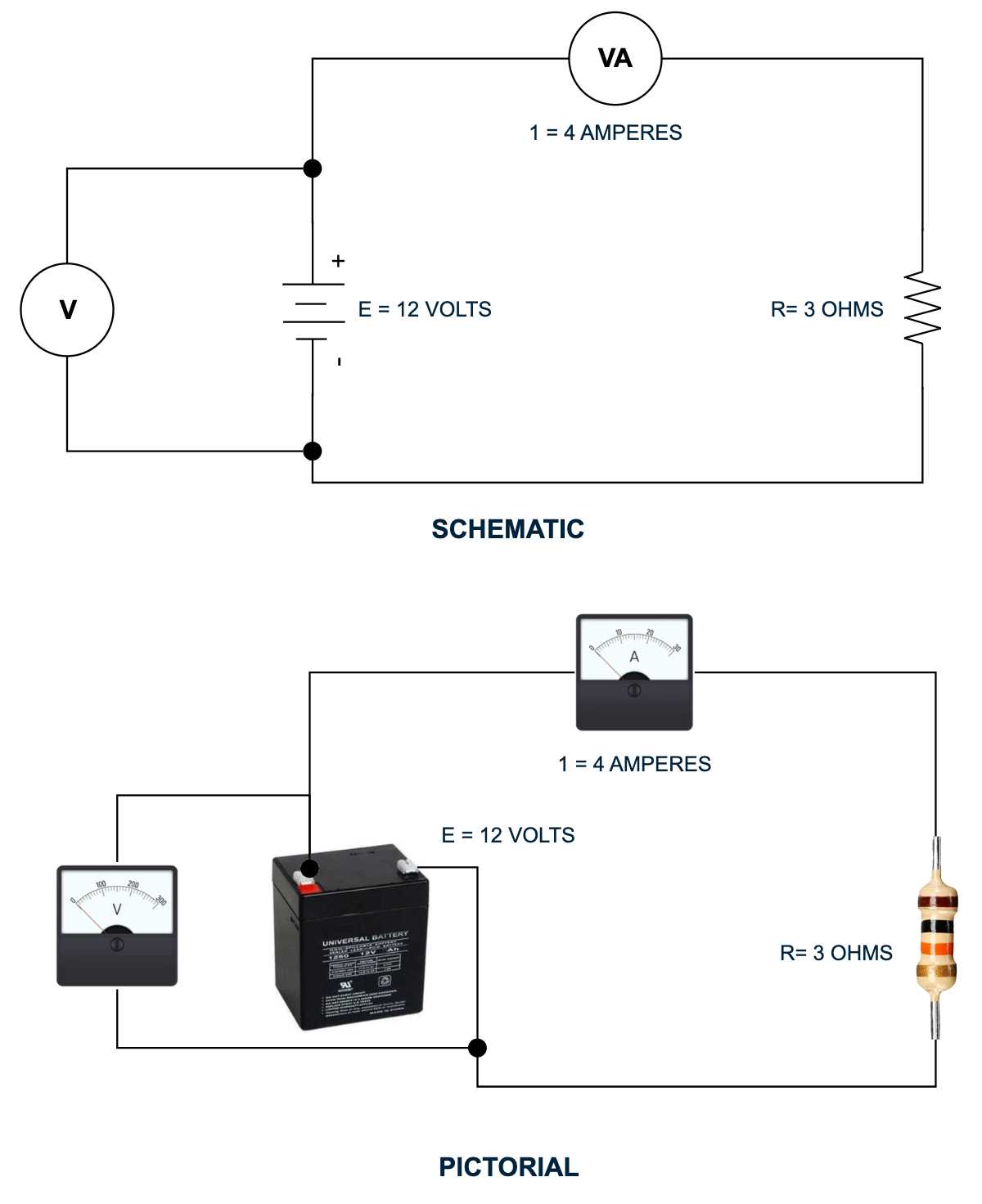
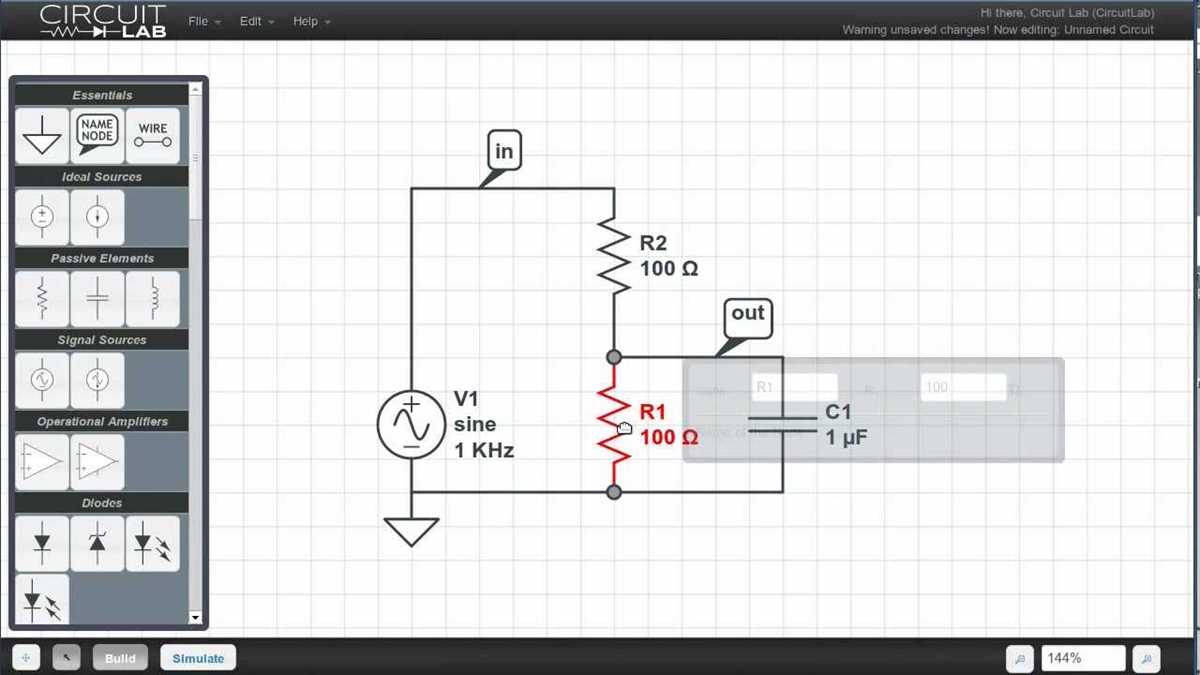
Select a web-based schematic editor with a large component library before building an electrical scheme. Platforms such as browser CAD tools allow placement of resistors, capacitors, microcontrollers, connectors, and power sources through drag-and-drop actions. Most editors include grids, snap alignment, and automatic connection nodes that keep lines straight and readable.
Create a new project canvas and place components according to signal flow. Power sources and ground symbols usually appear on the left or top, while loads and output devices sit toward the right side. Consistent orientation makes the electrical plan easier to read and reduces crossed lines between elements.
Connect symbols using the editor’s wire tool. Each connection point forms a node that represents electrical continuity. When multiple conductors meet, a junction dot indicates that all paths share the same potential. Label nets with names such as VCC, GND, SDA, or PWM so that large designs remain organized.
Use built-in validation features to check for floating pins or missing power lines. Many browser CAD systems also allow export to PNG, SVG, or PDF formats, enabling easy sharing with teammates or integration into documentation for electronics projects.
Choosing a web based schematic editor and creating a new electronics project
Select a browser CAD editor that includes a large electronics symbol library and export support. A suitable platform should provide drag-and-drop components, automatic connection nodes, grid alignment, and file export in formats such as PNG, SVG, or PDF. Editors used for electronics layouts usually include thousands of symbols covering resistors, capacitors, integrated circuits, sensors, connectors, and microcontrollers.
Before creating a project workspace, confirm that the platform supports these functions:
- Component search by part name or category
- Snap-to-grid placement for clean alignment
- Automatic junction dots at wire intersections
- Project storage and version history
- Export to image or vector formats for documentation
Create a new project canvas and configure the page size. Many editors provide preset formats such as A4, A3, or US Letter. Select a grid spacing between 0.1 and 0.2 inches so symbols align cleanly while keeping enough space for labels and connection lines.
Place core elements first:
- Power sources and ground symbols
- Integrated circuits or microcontrollers
- Passive parts such as resistors and capacitors
- Input and output connectors
This order keeps signal flow organized and reduces crossed conductors across the workspace.
Placing electronic components and connecting wires in an online circuit editor
Position major components first and align them with the grid before adding connections. Integrated circuits, power regulators, and microcontrollers usually occupy the central area of the workspace. Power sources and ground symbols appear at the top or bottom edges, while input and output connectors sit near the borders of the page. This arrangement keeps signal flow clear and prevents overlapping lines.
Use the component library search field to insert parts such as resistors, capacitors, diodes, and transistors. After placing each symbol, rotate it so pins face the correct direction. Most browser-based electronics editors allow rotation in 90-degree increments, which keeps pins aligned with connection paths.
Create connections using the wire tool and attach each conductor to visible connection points on the symbols. When two lines share the same electrical node, place a junction dot at the intersection. Avoid long diagonal paths; horizontal and vertical lines improve readability and reduce visual clutter in complex electrical layouts.
Label connection nets using short identifiers such as VCC, GND, SCL, or TX. Named nets allow distant points in the schematic to share the same electrical node without drawing a continuous line across the entire page, which keeps the design compact and organized.
Exporting sharing and printing circuit diagrams from an online design tool
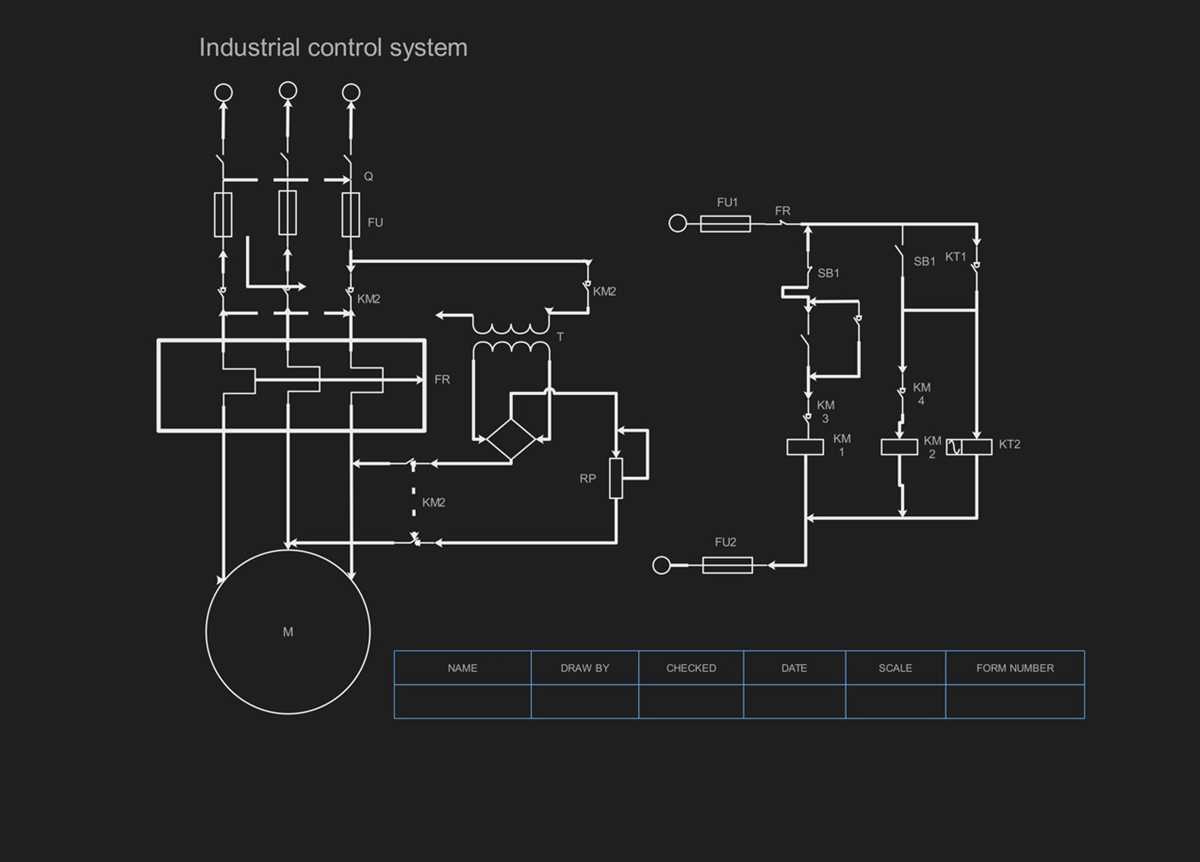
Select the correct export format before distributing an electrical schematic. Most browser CAD editors provide several output types suited for documentation, presentations, or manufacturing notes. Vector formats keep lines sharp at any scale, while raster images work well for quick previews or website publishing.
Use the export panel inside the editor and choose page size and resolution. When preparing files for printing, set the workspace to A4 or US Letter and enable grid alignment so symbols remain centered on the page. For digital sharing, choose higher resolution values such as 300 DPI to maintain clarity in connectors, labels, and component symbols.
Common export formats and use cases
| Format | Typical use | Main advantage |
|---|---|---|
| PNG | Web pages and presentations | Simple image format supported by most platforms |
| SVG | Technical documentation | Vector graphics remain sharp when zoomed |
| Printing and design reports | Maintains layout and page size across devices |
Many editors also provide shareable project links. Sending a link allows collaborators to open the schematic inside the same browser platform and review component placement, signal paths, and labels without downloading files.
Before printing, enable page preview and confirm that all connection lines and labels fit within margins. If the electrical layout spans multiple pages, activate tiled printing so each section appears on a separate sheet that can be assembled into a full schematic layout.