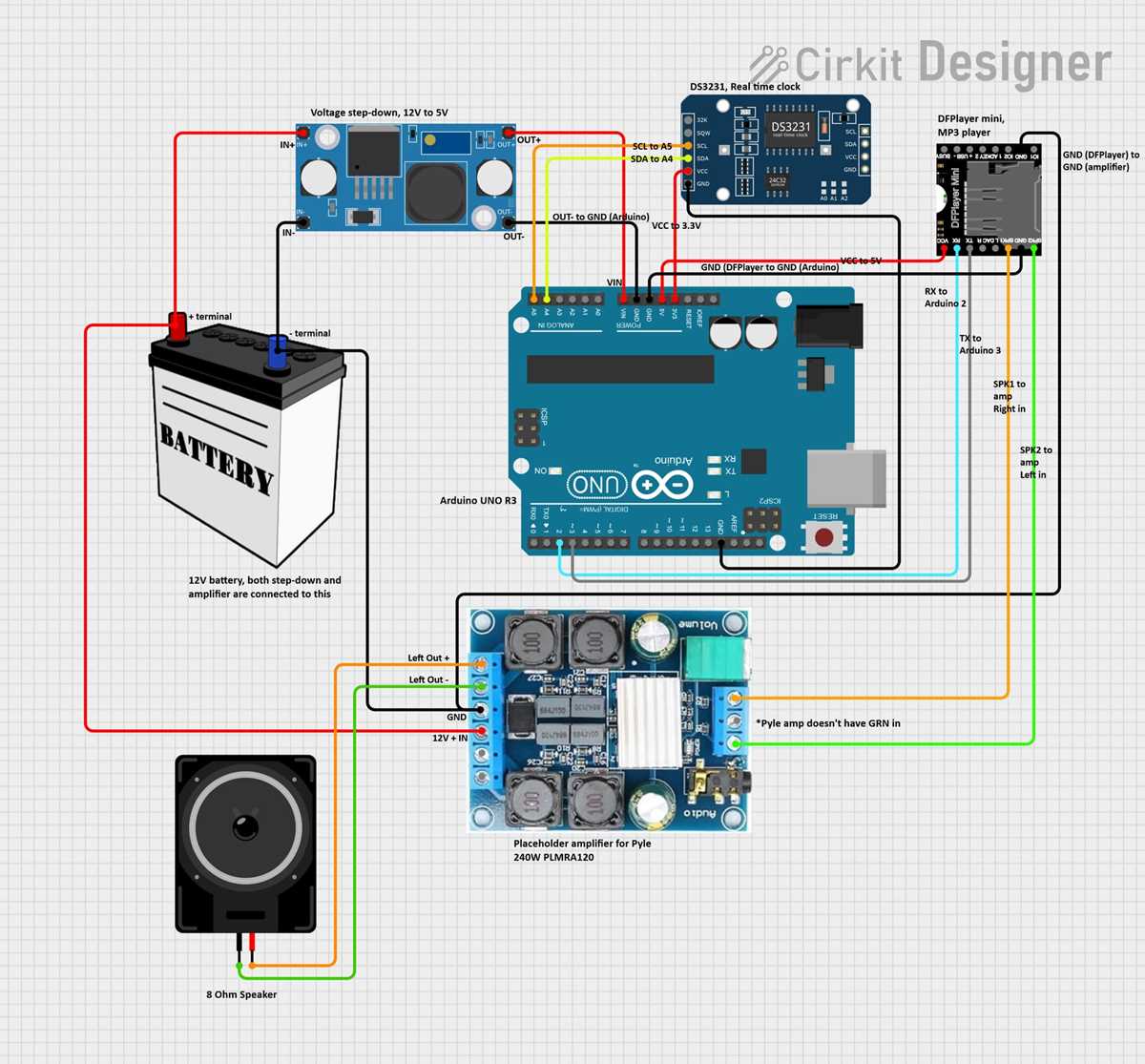
To begin, connect the positive terminal of the power supply to the corresponding input of the module. Ensure that the power supply provides the appropriate voltage to prevent potential damage to the unit. Securely connect the ground wire to the system’s common ground to ensure proper electrical flow and stability.
Next, connect the audio output pins to your speaker or amplifier. This allows the module to transmit sound signals. Check the impedance of the speaker to match the module’s output specifications to avoid distortion or damage.
Once the audio components are connected, wire the control pins to an external microcontroller, such as an Arduino. The microcontroller will manage play, pause, and track selection commands through serial communication. Ensure that the connections are firmly in place to prevent intermittent issues during operation.
Before powering up the system, double-check all connections for possible short circuits or loose wires. A well-organized wiring setup minimizes the risk of malfunction or short-circuiting the module, ensuring reliable performance during use.
Once everything is connected, test the system by uploading a simple control script to your microcontroller. Verify that the playback module responds to the commands as expected, including audio output through the connected speakers. If necessary, adjust the wiring for optimal performance.
DFPlayer Mini Circuit Setup Guide
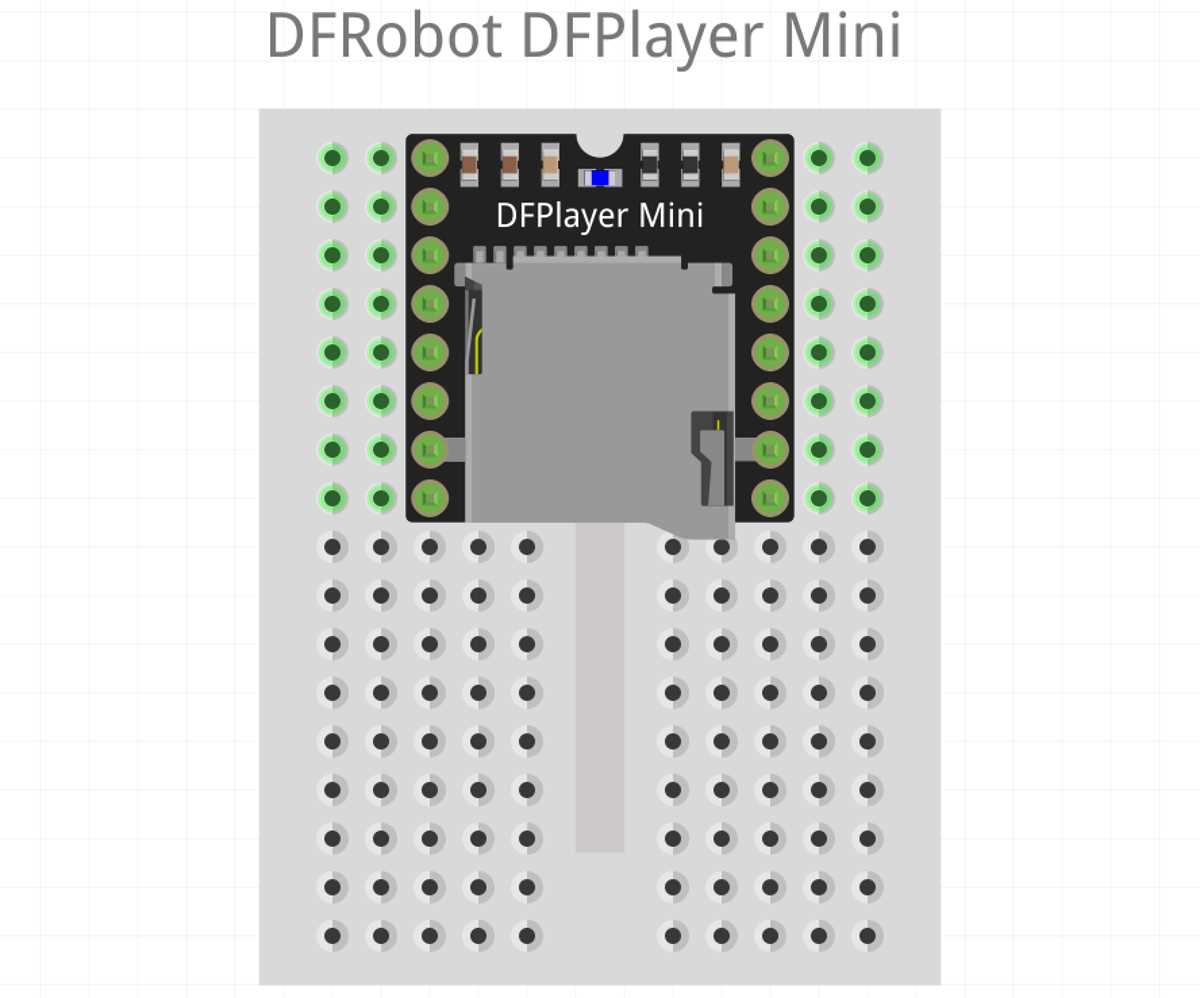
Start by connecting the module’s VCC pin to the 5V output of your power source. This ensures that the module gets the correct voltage to function properly. Make sure the power supply is stable to avoid potential issues with power surges or fluctuations.
Next, connect the GND pin to the ground of the power supply. This creates a common ground for the entire system and ensures that the module can properly communicate with other connected devices, such as a microcontroller.
The RX and TX pins are used for serial communication with a microcontroller, like an Arduino. Connect the TX pin of the module to the RX pin on the microcontroller, and the RX pin of the module to the TX pin on the microcontroller. This allows data transfer between the two devices, controlling the playback of audio files.
For audio output, connect the speaker to the module’s output pins. Ensure that the speaker is rated to handle the output power from the module. Using an inappropriate speaker could result in poor sound quality or even damage the speaker or module.
If you want to add external buttons for controlling the playback, such as play, pause, or skip, wire them to the control pins of the module. These can be connected to specific pins on the microcontroller, allowing for physical interaction with the module’s functions.
Double-check all the connections before powering up. Loose wires or incorrect connections can cause the system to malfunction or even damage components. Make sure to inspect the integrity of each wire, ensuring that each connection is secure and correctly placed.
Once everything is connected, upload the appropriate code to the microcontroller to control the playback module. The code should include commands for play, pause, and skip functions. Verify that the module responds to the serial commands sent by the microcontroller to ensure everything is set up correctly.
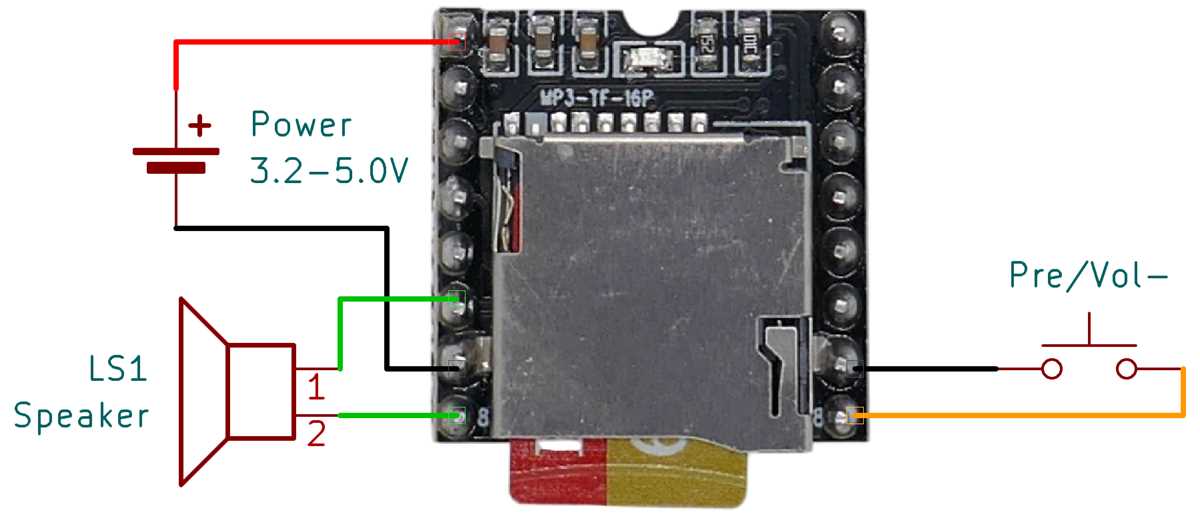
Test the system by powering it on and checking that the audio is output through the connected speaker. If you encounter any issues, such as no sound or distorted audio, review the connections and ensure that the power and data transfer lines are properly set up. Troubleshooting might also involve checking the speaker’s impedance and ensuring the volume level is not muted or too low.
Wiring the DFPlayer Mini Module with Arduino
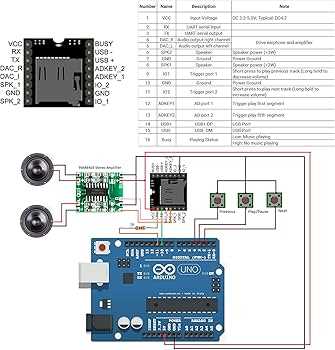
Begin by connecting the VCC pin on the audio module to the 5V output on the Arduino. This will supply the module with the necessary voltage for operation. Ensure that the power source is stable and capable of providing sufficient current for both the Arduino and the module.
The GND pin should be connected to the ground of the Arduino to establish a common reference point. A secure ground connection is necessary for reliable communication and operation of the entire system.
To enable serial communication between the Arduino and the audio module, wire the TX pin of the module to the RX pin of the Arduino, and the RX pin of the module to the TX pin of the Arduino. This setup allows the Arduino to send commands to control playback functions.
For audio output, connect a speaker or an audio amplifier to the module’s output pins. It’s important to choose a speaker with an appropriate power rating to avoid damage. A small 8-ohm speaker typically works well with this setup, though you may need an amplifier for louder output.
If you plan to control playback with external buttons, wire them to the module’s input pins. These buttons can be mapped to commands such as play, pause, or skip, giving you tactile control over the audio playback directly from the hardware.
Before powering the system, double-check all the connections to ensure they are secure. Faulty or loose connections could lead to the module not functioning properly or not receiving the necessary signals. Once verified, upload your code to the Arduino to test the entire setup and ensure the module responds to playback commands as expected.