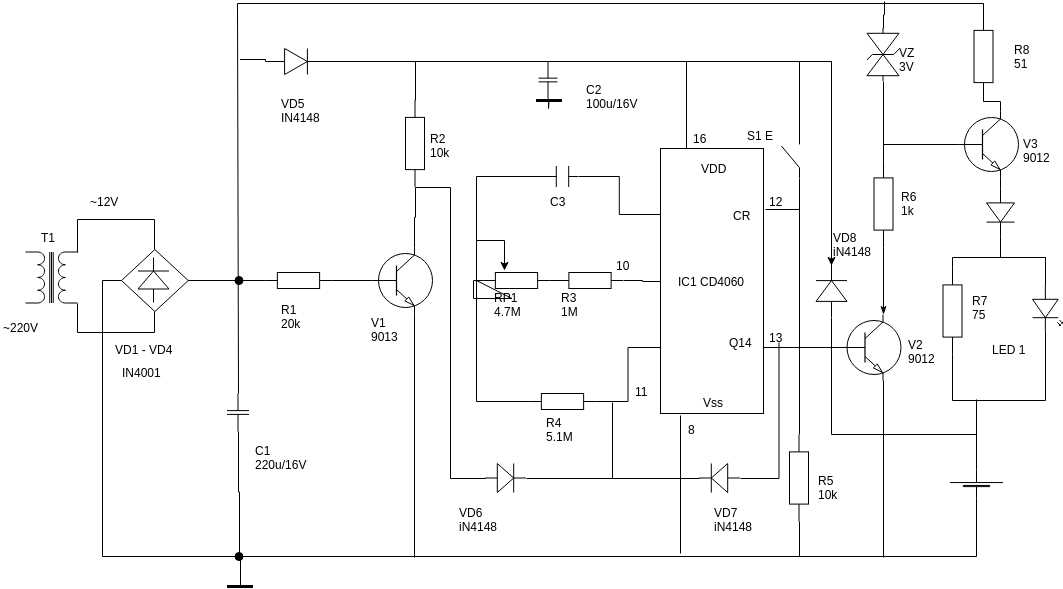
Use a browser editor with a built-in symbol library and drag-and-drop canvas to assemble an electronic schematic quickly. Such platforms allow placement of resistors, capacitors, transistors, logic gates, connectors, and power sources directly on a workspace. Most services include snap grids, automatic conductor alignment, and labeling tools that help maintain clear electrical structure.
Choose a platform that supports component libraries containing hundreds or thousands of symbols. A typical library includes passive parts, microcontrollers, power regulators, sensors, communication modules, and connectors. Many tools also allow importing custom symbols so that project-specific hardware can be represented accurately.
Use automatic connection routing and node labeling to prevent signal confusion. Clear labeling of power rails, ground nodes, and signal paths simplifies troubleshooting later. Most browser editors also show connection dots at junctions, preventing ambiguous intersections that could lead to incorrect interpretation.
Export capability matters during documentation and collaboration. Many platforms allow saving schematics as PNG, SVG, or PDF files for reports and technical documentation. Some services also provide shareable links so team members can open and modify the project within the same workspace.
For hardware prototypes, choose tools that also provide simulation modules or compatibility with PCB layout software. This allows verification of signal flow, component values, and connection structure before physical assembly of the electronics project.
Design Circuit Diagram Online Using Browser Tools and Component Libraries
Open a browser editor that provides a symbol library and grid-based workspace before placing any electronic parts. A structured canvas keeps connectors aligned and prevents crossing conductors that confuse signal flow. Most platforms allow quick insertion of resistors, capacitors, voltage sources, switches, and microcontrollers from a searchable library.
Component collections typically include hundreds of parts organized by category. Selecting the correct symbol speeds up schematic creation and reduces the need for manual drawing.
- Passive parts such as resistors, capacitors, inductors
- Semiconductors including diodes, transistors, voltage regulators
- Logic elements like AND, OR, NAND, flip-flops
- Connectors, headers, and terminal blocks
- Power sources and ground references
Placing Electronic Symbols and Connecting Conductors
Drag symbols onto the workspace and rotate them so signal flow moves from left to right. Many editors provide automatic alignment guides that keep parts positioned along a grid.
- Select a symbol from the library
- Place it on the workspace
- Rotate the part if signal direction requires adjustment
- Link terminals using connector lines
- Add labels for voltage rails and signal names
Connection points must display visible nodes where multiple conductors meet. Without these markers, intersecting lines may represent separate signals. Most editors automatically generate junction dots when three or more paths connect.
Using Libraries and Reusable Blocks
Store frequently used modules as reusable blocks. Examples include voltage regulator stages, microcontroller pin groups, sensor interfaces, and communication modules such as UART or I2C connectors. Reusing these groups reduces manual placement and keeps projects consistent.
After completing the schematic, export the project as PNG, SVG, or PDF. These formats allow inclusion in hardware documentation, lab reports, and assembly instructions for electronics prototypes.
How to Build an Electrical Schematic Online With Drag and Drop Components
Open a browser editor with a component palette and place parts onto the workspace using drag-and-drop controls. Select symbols such as resistors, capacitors, switches, power sources, microcontrollers, and connectors from the library panel, then position them on the grid so signal flow remains clear. Rotate elements so input and output pins align logically, then connect terminals using conductor lines that snap directly to pin nodes. Label voltage rails, ground references, and signal paths immediately after connecting parts so each connection remains readable during later edits.
Group related elements into functional blocks such as power supply, sensor input, logic stage, and output driver. Place the power source at the left or top area of the workspace, route supply lines across the page, and attach components to these rails using short connectors. Use junction dots where three or more paths meet and avoid overlapping lines that may hide connections. After assembling the schematic, verify each pin connection by highlighting nodes or using built-in connection inspection tools, then export the finished layout as PNG, SVG, or PDF for documentation or hardware assembly notes.