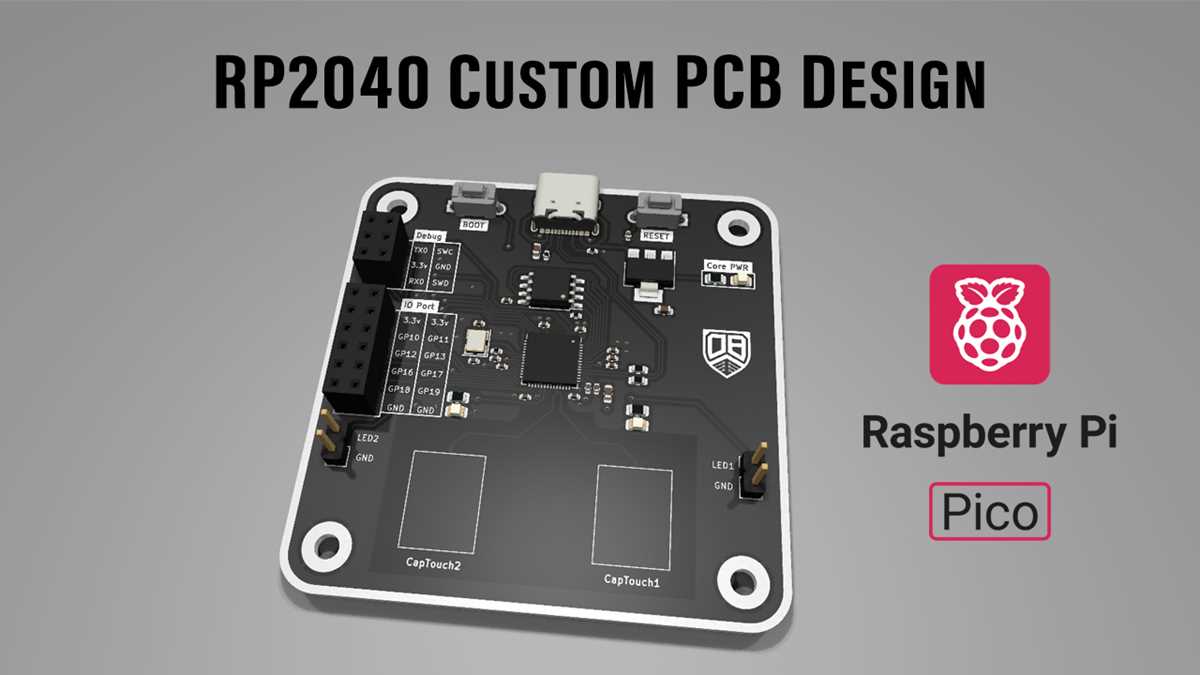
If you’re looking to create detailed electrical schematics using an affordable and versatile tool, the Raspberry Pi provides a perfect platform. It can run various open-source software options that allow you to design circuits easily. These programs are often free and offer all the tools you need to draft accurate and functional designs. Before you begin, ensure that you’ve set up the correct environment on your device, whether it’s through a specific OS or software installation.
To get started, install one of the popular circuit-building applications available for the Raspberry Pi. These applications typically support components such as resistors, transistors, diodes, and more. You can place and wire these elements on the virtual board to create the exact circuit you need. Additionally, the software may offer features like component libraries, automatic routing, and even simulation tools, which can make the design process smoother and faster.
Once you’ve created your design, these tools often allow you to export your work as a readable file or in a format that can be shared with others. Whether you are preparing to build a physical prototype or simply need to document your work, exporting your design is crucial. Make sure to choose the appropriate file type that suits your future steps, such as transferring the design to a PCB for manufacturing.
How to Use Circuit Design Software on Raspberry Pi
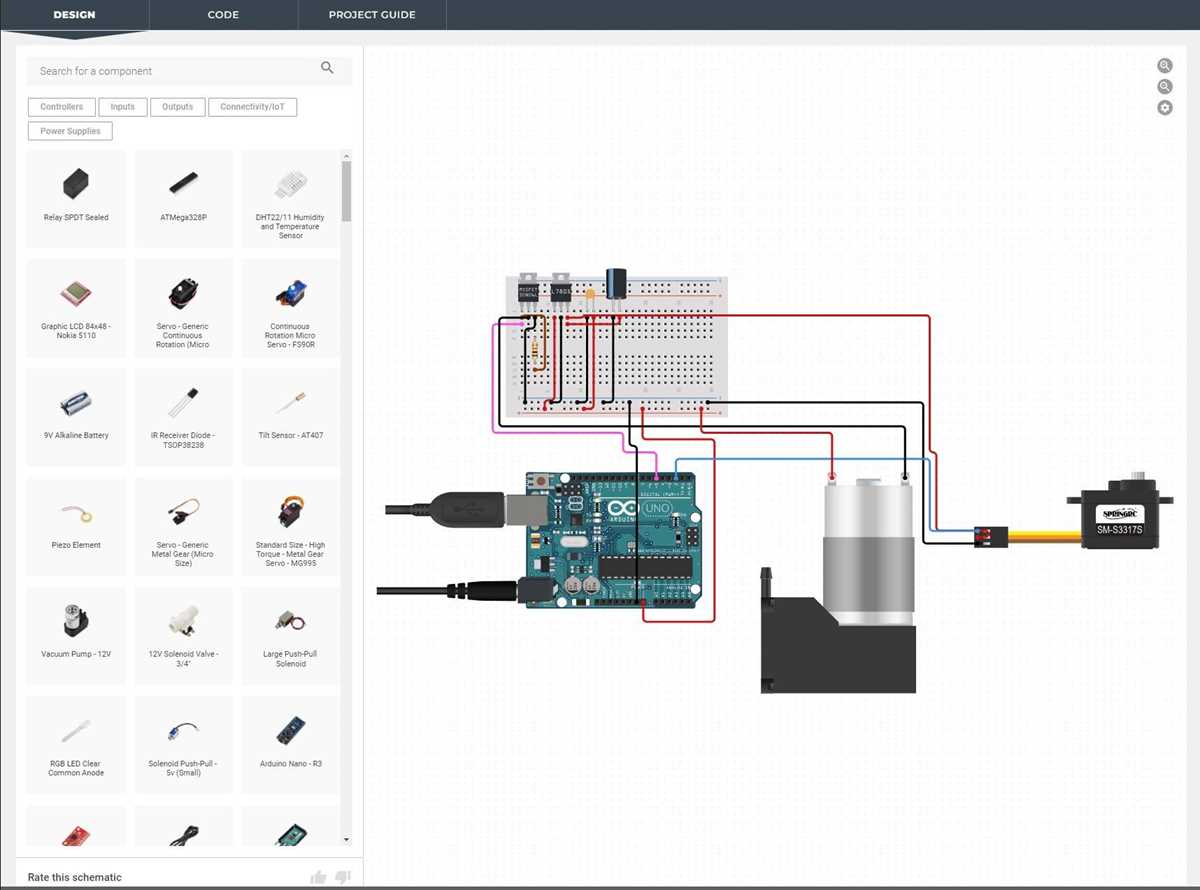
To begin designing electrical layouts on your Raspberry Pi, you need to install compatible software. Look for tools like Fritzing or KiCad, which are ideal for drawing connections between components and simulating circuits. Both of these options are open-source and provide a user-friendly interface, making them perfect for beginners and experienced users alike.
Once you’ve installed the software, you can start by selecting components such as resistors, capacitors, transistors, and more from the built-in libraries. Drag these components onto your workspace and connect them as needed. The process should feel intuitive, with components automatically snapping into place and automatically suggesting connections based on their type.
Make sure to pay attention to the design rules built into these applications. These rules help ensure that your connections are realistic and feasible for manufacturing. For example, proper routing of traces, avoiding shorts, and maintaining sufficient space between elements are all key considerations for a successful project.
After laying out the components and making the necessary connections, the software will often have the option to simulate the circuit. This allows you to test how the electrical setup will behave in real life, checking for any potential issues like power surges or overheating. If the simulation works as expected, you’re on the right track.
Once you’ve successfully designed and tested the schematic, exporting the file is the next step. Depending on the software, you can export the design in various formats such as SVG, PDF, or even Gerber files if you want to send the design to a PCB manufacturer for production. Make sure to choose the format that aligns with your project’s requirements.
Keep in mind that many design programs also offer integration with external tools. For example, you might want to use a Python script to automate parts of the design process or generate specific values for resistors or capacitors based on your project needs. This integration can help streamline the workflow and save time when working on complex projects.
Finally, don’t forget to use version control if you’re working on a long-term or collaborative project. Tools like GitHub or GitLab can store and manage your design files, making it easier to track changes and collaborate with others. This is particularly helpful when working on large projects or if multiple people are involved in the design process.
Choosing the Right Software for Creating Schematics on Raspberry Pi
When selecting software for designing electronic layouts on your Raspberry Pi, consider both functionality and ease of use. Popular programs like KiCad, Fritzing, and Eagle are well-suited for creating detailed schematics. Each tool has its own strengths, so choose one that fits your level of experience and the complexity of your projects.
KiCad is a powerful open-source tool with a wide range of features. It supports multi-layer PCB designs and is ideal for users looking to create professional-grade projects. However, it may have a steeper learning curve compared to simpler applications like Fritzing. If you’re a beginner, Fritzing provides a more intuitive interface with drag-and-drop functionality, making it easier to get started.
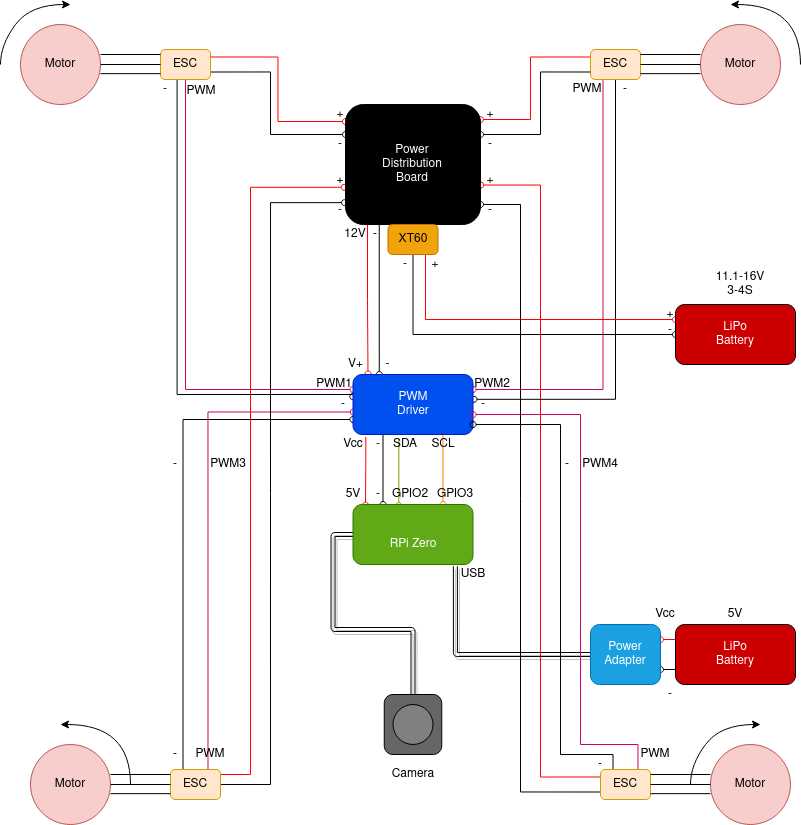
If your goal is to create a simple schematic for a basic project, Fritzing might be the best option. It’s very user-friendly and comes with a vast library of components, making it a great choice for those who don’t need advanced features. It also allows you to export designs to various formats, such as PDFs or images, for easy sharing and documentation.
For those who need a more robust platform with support for complex designs, Eagle might be a better fit. It offers a range of advanced features like automatic routing and component libraries, which can save a lot of time when working on intricate projects. However, it’s important to note that Eagle has a free version with some limitations, so you might need to upgrade if you require additional capabilities.
Ultimately, the right choice depends on the complexity of your work and your comfort level with the software. If you’re just starting, Fritzing offers a quick and easy solution. For more advanced users, KiCad or Eagle will provide the tools necessary for more demanding projects. Experiment with a few options to see which one best suits your needs and project scope.