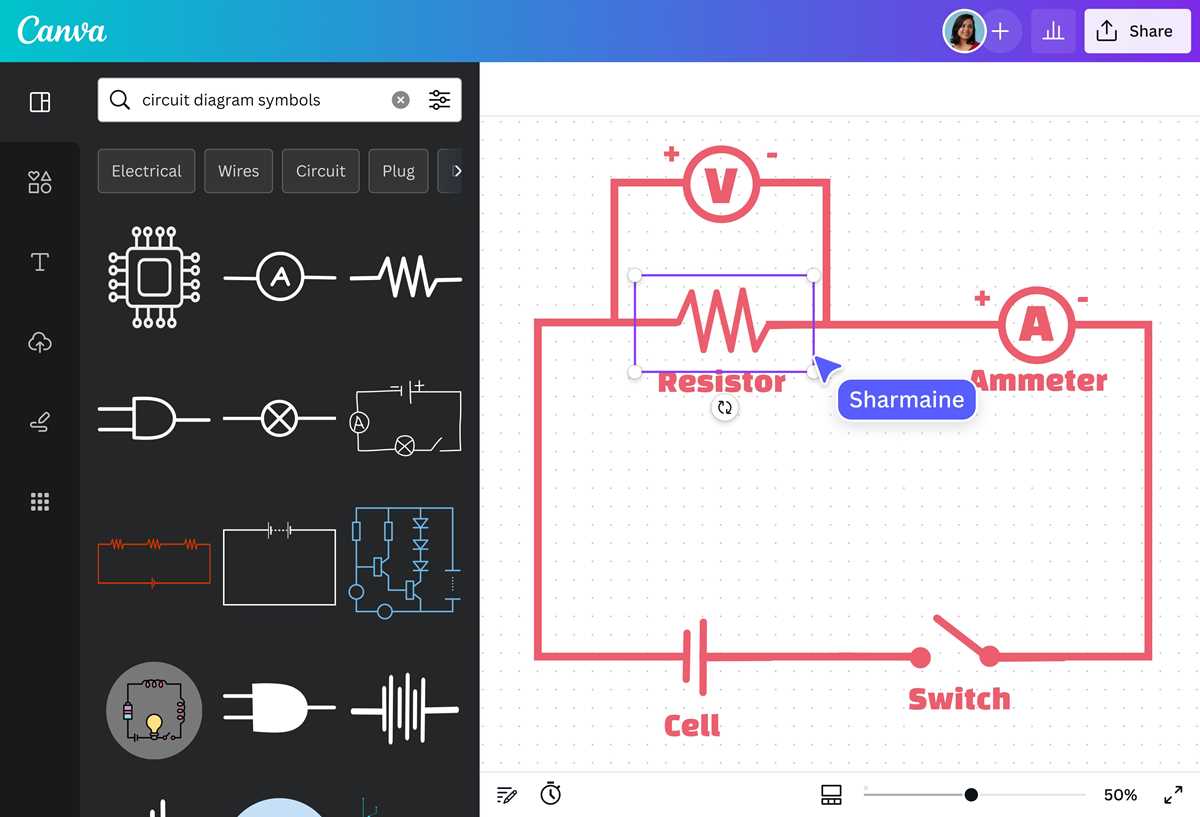
Use a browser-based schematic editor that provides a library of electrical symbols and drag-and-drop placement. Platforms with built-in component catalogs allow quick assembly of power supplies, resistors, relays, and microcontroller modules on a virtual workspace. Select tools that allow grid snapping and connector routing so that lines remain aligned and readable during complex electrical layout creation.
Choose a platform that supports symbol search and categorized component panels. Many web-based drafting environments include collections for analog electronics, digital logic, power distribution, and embedded hardware. Dragging a symbol directly onto the canvas and linking it with connection lines reduces manual drawing and prevents alignment errors that occur in generic graphic editors.
Export options determine how usable the final schematic drawing becomes. Look for platforms that provide PNG, SVG, or PDF output with scalable vector graphics. Vector export preserves line sharpness during printing or documentation preparation. Some tools also generate shareable links that allow collaborators to open and modify the same schematic layout through a browser without installing additional software.
Grid size control, automatic junction nodes, and wire labeling help maintain clarity in dense electrical layouts. Editors that support layer organization allow separation of power distribution, control lines, and signal paths. This structure keeps complex electrical plans readable during troubleshooting or component replacement.
Online Circuit Diagram Maker Tools for Electrical Schematic Design and Editing
Select a browser-based schematic editor that includes standardized electrical symbols such as resistors, capacitors, transistors, relays, and integrated modules. Platforms with drag-and-drop placement allow rapid layout assembly while automatic connector routing keeps conductors aligned along grid lines. Use software that supports snap-to-grid spacing such as 2.5 mm or 5 mm so that components remain evenly positioned across the drawing field. Libraries containing hundreds of parts reduce the need to import custom graphics and allow quick placement of power supplies, microcontrollers, sensors, and switching devices inside the same technical layout.
Choose tools that allow vector export formats such as SVG or PDF, because these preserve line sharpness during zooming or printing. Label connectors and node points directly inside the schematic workspace so that voltage paths, signal routes, and grounding points remain readable. Many browser-based editors also support layered workspaces where control lines, power rails, and signal connections can be separated into different layers; this keeps dense electrical layouts organized during troubleshooting or documentation.
How to Create an Electrical Circuit Diagram in an Online Editor Using Component Libraries
Open a browser-based schematic editor that provides categorized electrical symbol collections. Choose a blank workspace with grid alignment enabled. Set grid spacing to 2.5 mm or 5 mm so components remain aligned during placement.
Locate the component library panel and search for parts such as resistors, capacitors, inductors, diodes, and integrated chips. Drag each symbol onto the workspace instead of drawing shapes manually. This method keeps graphical standards consistent with electrical drafting conventions.
Selecting components from symbol libraries
Most schematic editors organize parts into groups. Use search or category filters to place devices quickly.
- Power supply symbols such as batteries and DC sources
- Passive components including resistors and capacitors
- Active semiconductor parts like transistors and operational amplifiers
- Switches, relays, and connectors
- Ground references and voltage nodes
Arrange components from left to right following signal flow. Power sources normally appear at the left side of the layout while loads and output stages appear toward the right. This arrangement helps readers trace current paths without confusion.
Use connector tools to draw conductive paths between terminals. Enable automatic junction dots so intersections clearly indicate electrical connection rather than line crossing. Avoid diagonal routing; horizontal and vertical lines maintain readability.
Organizing the schematic layout
Maintain spacing between symbols so labels and values remain visible. Apply clear naming for each component.
- Assign reference designators such as R1, C1, Q1
- Attach value labels like 10kΩ or 100µF
- Mark voltage rails such as +5V or +12V
- Place ground symbols near return paths
Group related sections such as power regulation, signal processing, and output stages. Use rectangular boundary outlines or comment boxes provided by the editor to separate functional blocks.
Export the finished electrical schematic as SVG or PDF so line quality remains sharp during zooming or printing. Store project files in cloud storage provided by the platform so revisions remain accessible from different devices.