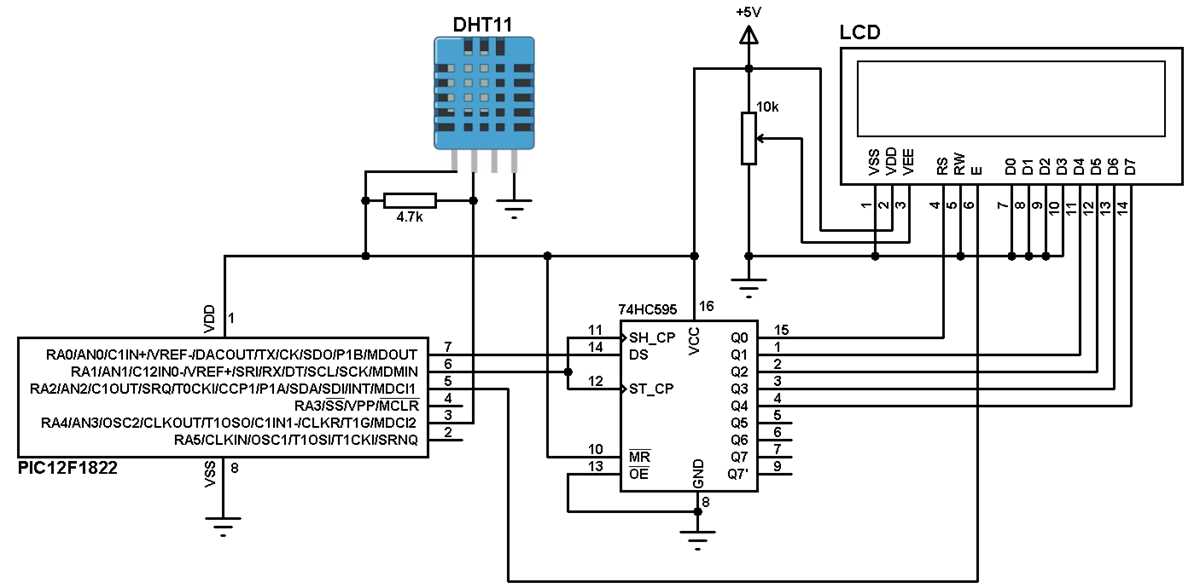
To effectively use a temperature and humidity sensor, you need to ensure correct wiring and configuration. The sensor has three main pins: VCC, GND, and DATA. The VCC pin should be connected to a 5V or 3.3V power source, depending on the microcontroller being used. GND goes to the ground of the microcontroller. The DATA pin should be connected to a digital pin of the microcontroller, which will handle the signal processing. Make sure to use a 10kΩ pull-up resistor between the DATA and VCC pins to ensure stable communication.
After making the necessary connections, the next step is to implement the correct code to interact with the sensor. Many platforms like Arduino provide libraries that can simplify the process, handling the protocol for reading data from the sensor. This library will allow you to retrieve the current temperature and humidity in an easily understandable format. Always ensure that the sensor’s data is updated periodically and that you have accounted for any potential errors in data reading.
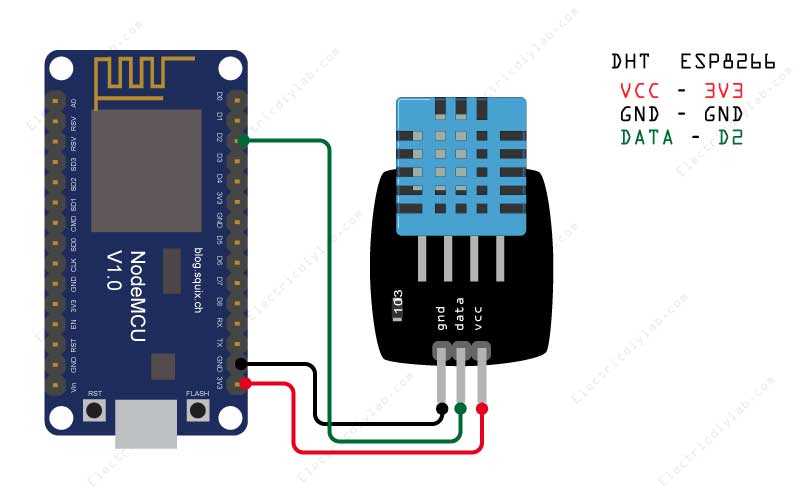
It’s important to note the limitations of the sensor when using it in various projects. While the DHT11 is an affordable option, it’s less accurate than other models, such as the DHT22, especially in extreme temperature or humidity conditions. Its range for temperature is limited from 0°C to 50°C, and humidity readings are only reliable between 20% and 80%. Keep these constraints in mind when selecting this component for your setup.
Detailed Guide for DHT11 Sensor Wiring
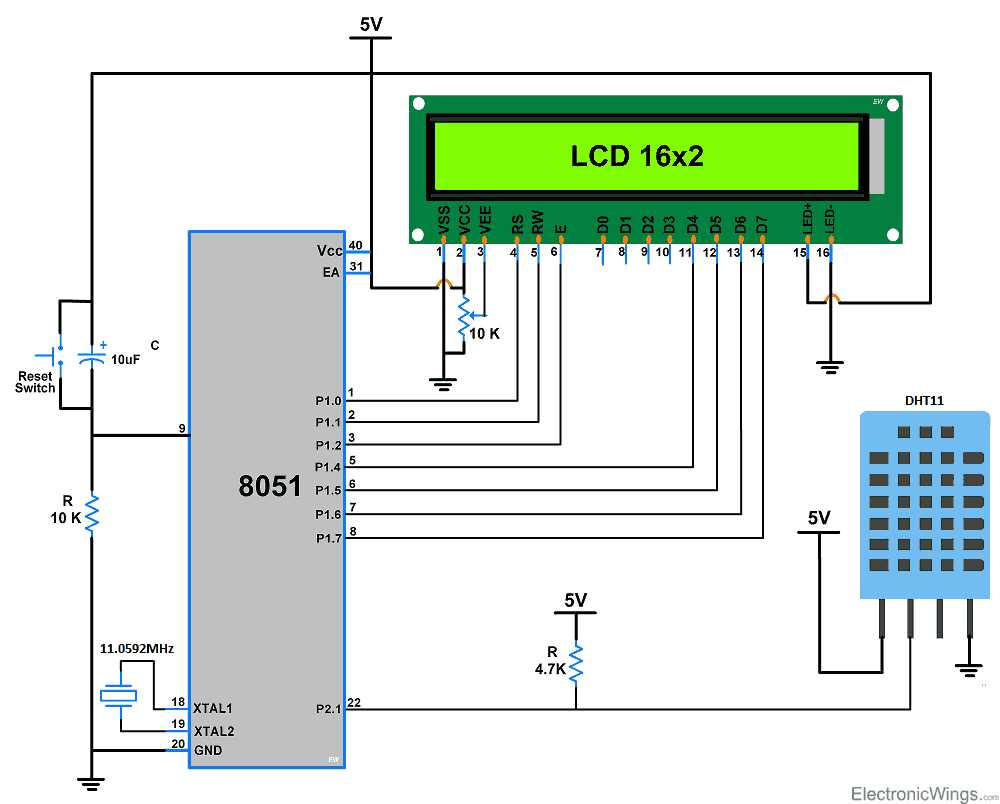
To wire the temperature and humidity sensor correctly, start by identifying the three essential pins: VCC, GND, and DATA. Connect the VCC pin to a 3.3V or 5V power source, depending on the microcontroller you are using. GND should be connected to the ground pin of the microcontroller. For the DATA pin, connect it to one of the digital pins on your microcontroller, typically a pin capable of handling digital input and output. Make sure to insert a 10kΩ pull-up resistor between the DATA pin and the VCC pin to stabilize the communication signal.
Once the wiring is completed, ensure that your microcontroller is configured to read data from the sensor. Most popular platforms, like Arduino, have libraries that can handle the sensor’s communication protocol. With the proper code in place, the sensor will return temperature and humidity values, which can be displayed or logged. Ensure that your program reads the data at regular intervals to avoid errors in continuous sensor operation. It’s also advisable to perform error checking to handle any potential discrepancies in the data readings.
Understanding the DHT11 Sensor Pinout and Connections
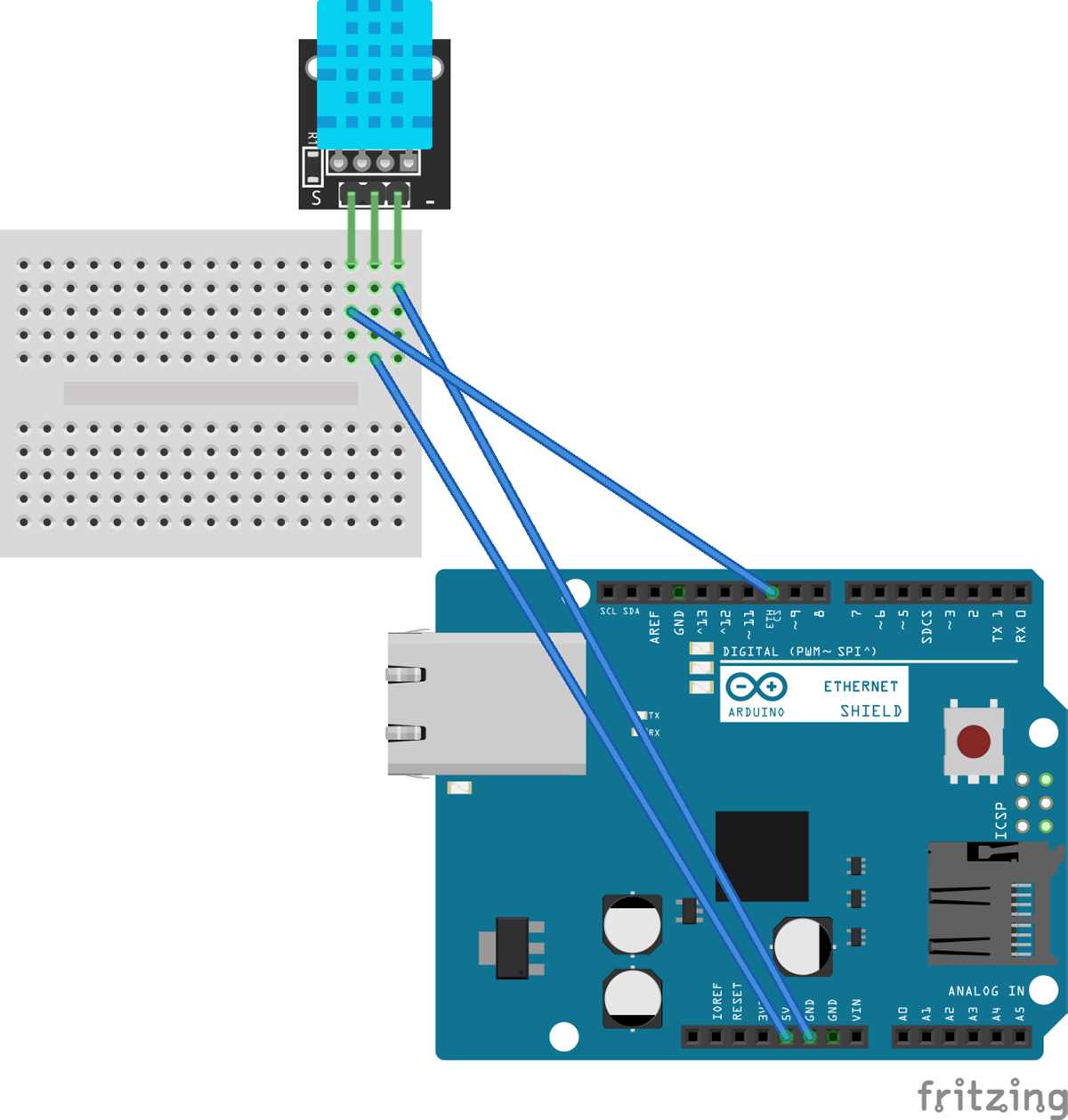
The sensor typically features four pins. These pins are labeled VCC, GND, DATA, and NC (Not Connected). Connect the VCC pin to a stable 3.3V or 5V power supply, depending on your system’s requirements. It is important to ensure that the voltage you supply is within the sensor’s operating range to prevent damage.
The GND pin connects to the ground of your microcontroller or power supply. This is necessary to complete the electrical circuit and ensure proper functionality of the sensor. Always double-check the ground connection to avoid malfunction.
The DATA pin is where the sensor sends temperature and humidity data. It should be connected to a digital input pin on your microcontroller. For accurate data transmission, use a 10kΩ pull-up resistor between the DATA pin and VCC. This helps stabilize the signal and ensures proper communication.
The fourth pin, labeled NC (Not Connected), does not serve any purpose and can be left unconnected. Avoid connecting it to any other components or wires. Leaving this pin unused prevents any potential conflicts or electrical shorts.
When setting up the wiring, ensure that the pull-up resistor is correctly placed. Connect one end to the DATA pin and the other end to the VCC pin. This resistor ensures that the signal is strong enough for reliable data transmission to your microcontroller.
Once the connections are made, double-check all wiring before powering on your system. If the sensor is properly connected, the microcontroller should be able to read temperature and humidity values. If the readings are incorrect, inspect the connections again, especially the pull-up resistor and data pin connection.
If you’re using a microcontroller like Arduino, there are libraries specifically designed to handle data collection from this sensor. After installing the library, you can write simple code to begin reading the temperature and humidity values directly from the sensor.
In conclusion, the key to successful integration of the sensor lies in proper pin connection and careful handling of the DATA pin with a pull-up resistor. Following these steps will allow for accurate and reliable operation in projects that require temperature and humidity sensing capabilities.