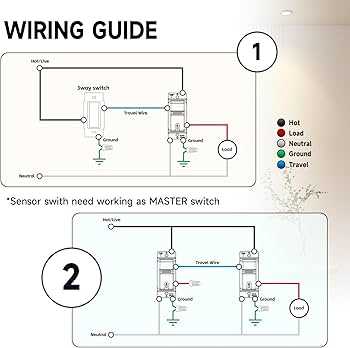
Ensure all power is turned off before handling any live circuits. Identify the line, load, and neutral conductors clearly to prevent misconnection and avoid short circuits. Use a voltage tester to confirm no current is present.
Match the device terminals with the corresponding cables: the live wire connects to the input terminal, the switched line attaches to the output, and the neutral wire links to the common terminal. This setup guarantees the lighting responds correctly to motion triggers.
Check the coverage area and angle of the unit. Position the device where motion is reliably detected without interference from heat sources or reflective surfaces. Improper placement can cause false activation or non-response.
Secure all connections with proper clamps or wire nuts to prevent loosening over time. Exposed copper should be minimized, and insulation should extend fully to the terminal block to maintain safety and longevity.
Test the setup by temporarily restoring power and observing activation. Adjust the sensitivity and time delay settings as needed for the specific environment. Repeat tests at different times of day to ensure consistent performance.
Occupancy Sensor Connection and Terminal Setup Guide
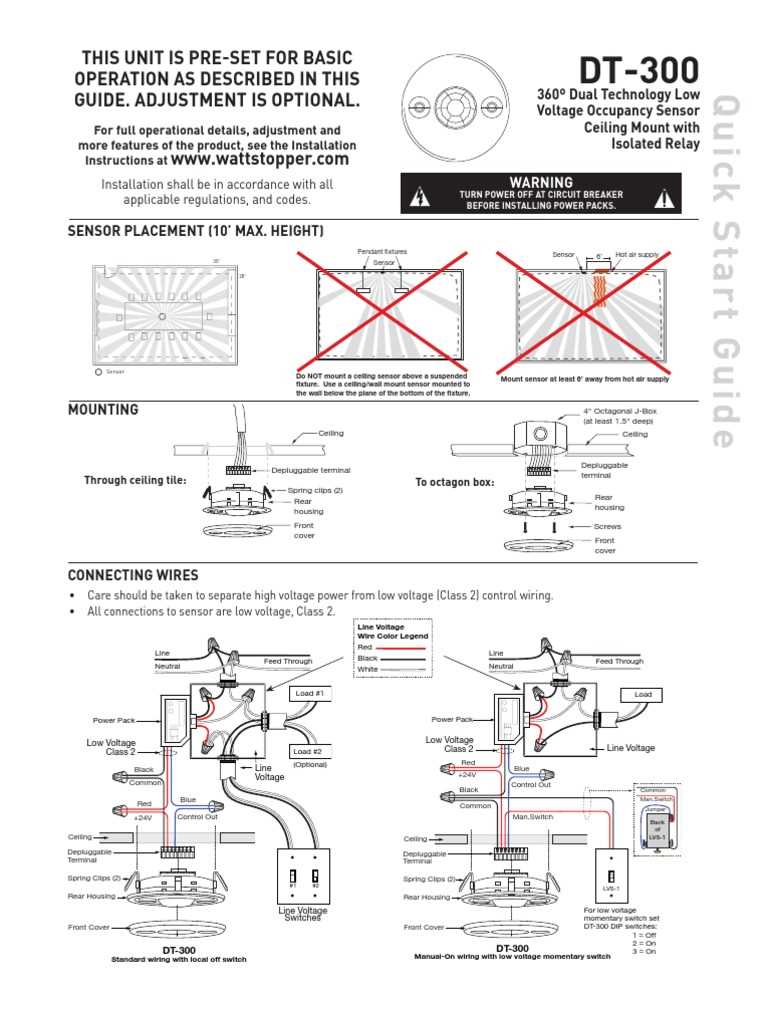
Turn off all power at the breaker before beginning any connections. Identify the incoming hot line, the switched load, and the neutral conductor clearly. Use a voltage tester to confirm the absence of current to prevent hazards.
Connect the live line to the terminal marked “Line” or “L.” Ensure a firm insertion so the wire does not loosen under vibration or movement. Loose connections can cause intermittent operation or arcing.
The switched output wire should attach to the terminal labeled “Load.” This wire controls the lighting or device circuit. Double-check polarity and confirm the conductor type matches the terminal rating.
Neutral connection is critical for proper operation. Attach the neutral conductor to the corresponding terminal. If the location lacks a neutral, use a compatible device designed for line-only installations.
Grounding the unit improves safety and reduces electrical noise interference. Connect the ground wire to the green screw or grounding terminal. Ensure the connection is secure and free from paint or corrosion.
After all terminals are connected, use cable clamps or wire nuts to secure each conductor. Keep copper exposure minimal and insulation intact to prevent accidental shorts and maintain code compliance.
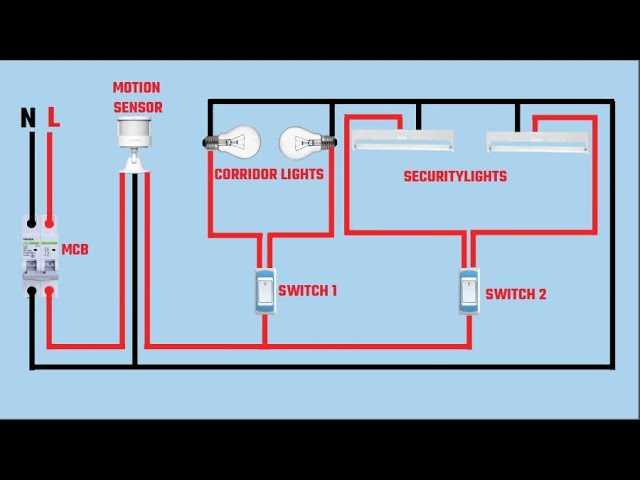
Test the installation by restoring power and triggering the unit manually. Adjust the time delay and sensitivity settings according to room size, occupancy patterns, and ambient lighting conditions to avoid false triggers.
Perform multiple test cycles at different times and positions. Confirm that the device consistently activates and deactivates the connected load. Recheck all connections after initial testing to ensure long-term reliability.
Identifying Sensor Terminals and Wire Functions
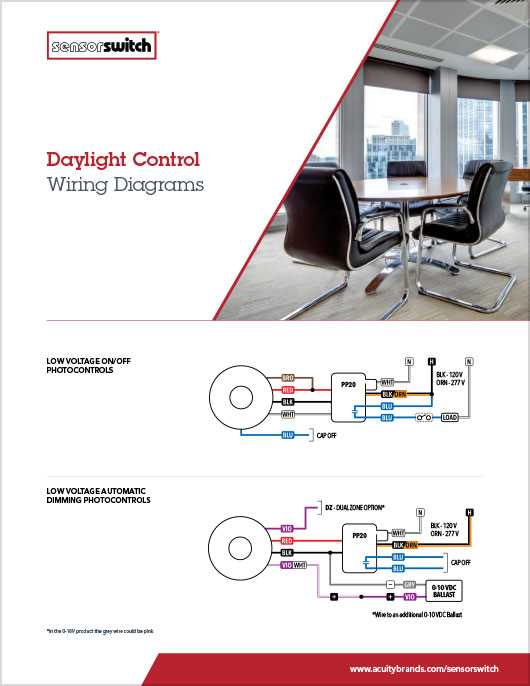
Start by locating the terminal markings on the device casing. Most units have labels such as Line, Load, Neutral, and Ground. These markings indicate the role each conductor must play in the connection.
Use color codes to distinguish conductors. Typically, black indicates the incoming live line, red or brown signals the switched output, white or blue represents neutral, and green or bare copper serves as ground.
Verify each conductor with a multimeter before attachment. Measure voltage between live and neutral wires to confirm proper identification. This prevents accidental cross-connections that could damage the device.
Document the connections in a simple list:
- Line: Incoming hot conductor
- Load: Output to controlled device
- Neutral: Completes the circuit
- Ground: Safety connection
Observe terminal size and type. Some units accept screw terminals while others use push-in or clamp types. Ensure the conductor gauge matches terminal specifications for reliable contact.
After identifying and labeling all conductors, perform a continuity test to confirm that each terminal connects to the correct internal path. This step ensures correct operation and reduces troubleshooting after installation.